Part 2
Background
Thursday 26th Novemember saw my media server (an old desktop running XP SP2) give up on me. The harddisk that the OS was installed on was corrupt with a boot becoming impossible because some of window's key files like HAL.dll were missing/corrupt. I soon realised that the disk was finished. But it didn't matter too much because all of my media was installed on an external HD and a second internal HD in the machine.
The Problem
I like to keep up to date with some of the shows that air in the US before they are shown in the UK. I use Xbox Media Centre to play back the stuff I download, with the "media server" merely serving up the files accross my network. I have a modded Xbox (not a 360) that allows me to play my "backup" games and also allows you to use the Xbox as a media centre.
More info here http://xboxmediacenter.com/
I found myself logged on to my trusty old "media server" all of the time, downloading these shows using the Bittorrent protocol. I've always wanted to have a client that would run as a windows service that I could administer remotely and would not require me to have a User ID logged onto the opperating system 24x7.
It seemed like the perfect time to try and find the solution to this little problem as I rebuilt my machine.
The Solution
I decided to install a copy of Windows 2003 on my media server, using the same approach as before with the OS on a separate disk. Over the last 4 years I have used most of the torrent clients, the best one being uTorrent. It doesn't have an installation package, require Java, or screw up my router.
As luck would have it when I went to http://www.utorrent.com/ , to get the latest client, they had announced the release of uTorrent WebUI on public beta. This was great news, the remote administration angle looked like it was sorted.
What next? Okay, so if I could just get uTorrent running as a Windows Service on my machine that would do!! With a bit more digging, and downloading The Windows 2003 Resource Kit I found the solution. Using two of the tools that I had downloaded you can configure pretty much anything to run as a Windows Service. See Part 2 of this article to find out how.
You don't need Windows 2003 Server you can do this on XP, so keep reading
I'll walk you through configuring this, starting with uTorrent WebUI.
Install uTorrent WebUI
This is pretty easy, it doesn't have a complicated install process and configuring the WebUI is straight forward. Download the app. You can find it here http://download.utorrent.com/beta/webui_v0.310_beta_2.rar
Once you've downloaded this rar file, get it unpacked on your desktop. You'll find a number of files in the archive. Create a folder for uTorrent, possibly C:\Program Files\uTorrent and copy the utorrent exe into that directory. You could rename it as well. Setup shortcuts etc and run the app. If its the first time you have run uTorrent it will ask you a few questions. Basically associate uTorrent to .torrent files, make it the default client, and don't choose to start it when you logon to windows.
These can be altered in the preferences menu, navigate there now and make sure that Start uTorrent on system startup is unchecked in the general section. The preferences are stored per user so make sure that you are logged on as the user you intend to run uTorrent under when it is installed as a Windows Service. See part 2 of this article on how to do it.
Now Click Start -> Run and enter C:\Documents and Settings\User Name\Application Data\uTorrent at the prompt
This opens uTorrent's appdata directory for the user who's logged on and the service that will run the app. From the downloaded rar file, copy the file webui.zip into this folder. Don't unzip it.
Okay, rather than type I've screen shot all the preferences screens from my install.
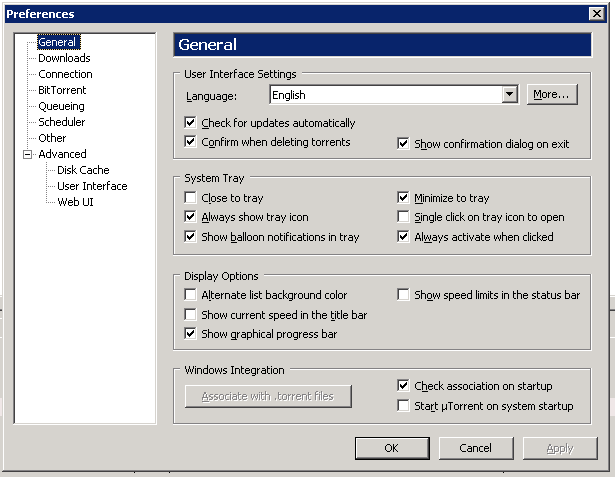
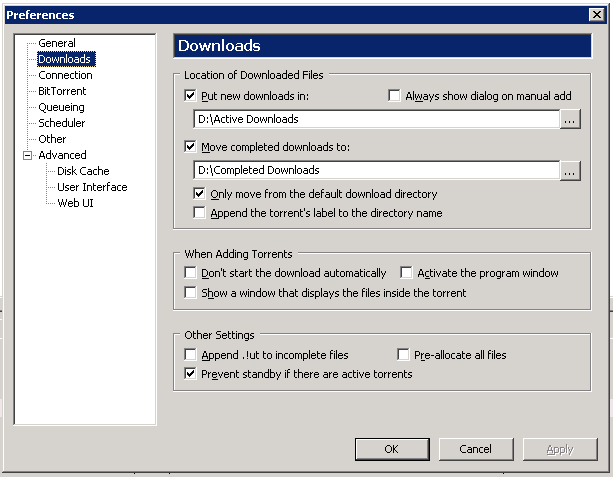
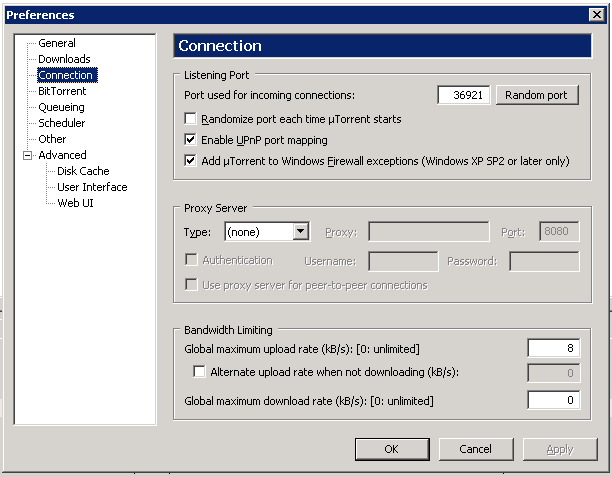
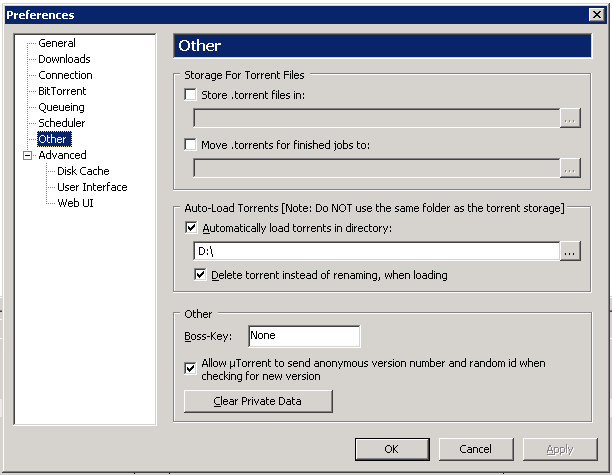
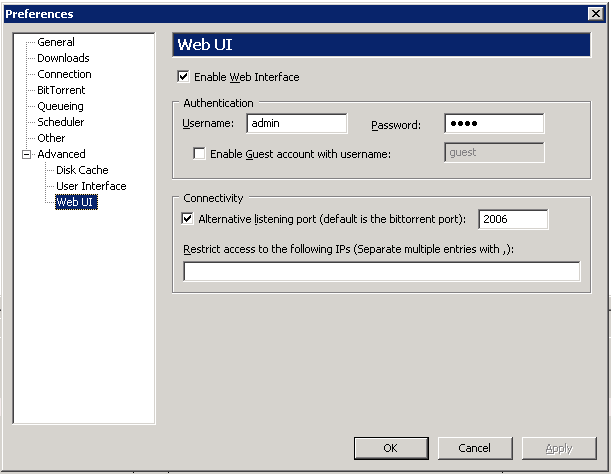
Once you've configured it, close the preferences dialog box and fire up your web browser. You don't need to do anything with IIS. uTorrent listens on the port you specify in WebUI section for HTTP requests and serves up the web front end to you browser.
You should now see uTorrent in your browser.
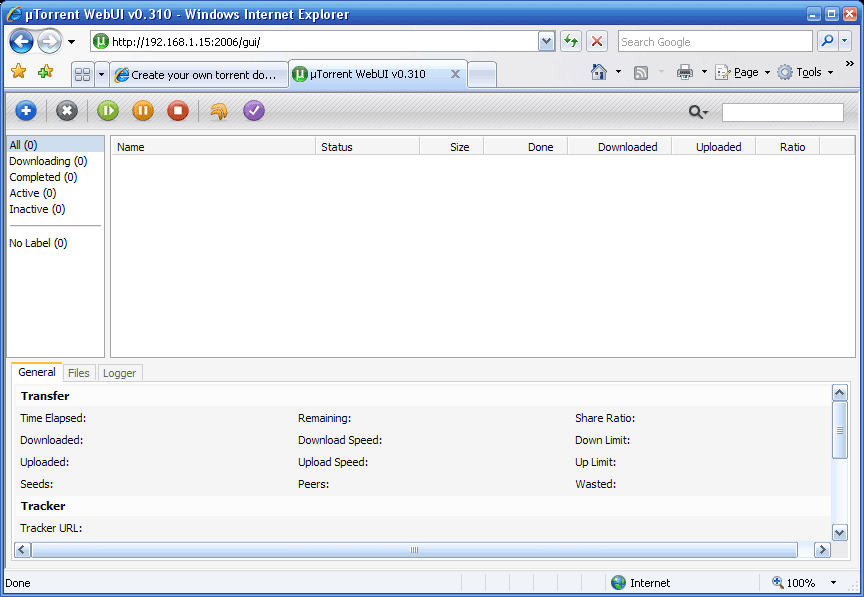
Okay, if you've got uTorrent running and accessible via a browser (locally and remotely) we're ready to install it as a Windows Service.
Install uTorrent as a Windows Service
We need a couple of tools to do this, I downloaded them with the Windows 2003 Resource Kit. The two files are
instsrv.exe and srvany.exe
and available to download on this page.
Copy these files into the program directory you have created for uTorrent. Get a command prompt by Start -> Run and entering CMD at the prompt.
At the command line get into the uTorrent directory using the cd command. Then run the following command. Where uTorrent is the name of your uTorrent folder in Program Files. If you've installed this elsewhere amend the path accordingly.
instsrv uTorrent "C:\Program Files\uTorrent\srvany.exe"
This creates the appropriate Registry Entries to manage the service. Srvany.exe acts as a wrapper to the uTorrent.exe and allows it to be managed as a Windows Service.
Okay, now we need to make a tweak to the registry, to basically map the path of the uTorrent.exe that Srvany.exe has to manage. Do this by creating a .Reg file using notepad
Paste in the code below.
Windows Registry Editor Version 5.00HKEY_LOCAL_MACHINE\SYSTEM\CurrentControlSet\Services\uTorrent\Parameters]["Application"="C:\\Program Files\\utorrent\\utorrent.exe"
You can navigate to the registry and make the same change. You've now done enough to get an entry in the Windows Services Database and you can now access it via the Services section of Microsoft Management Console.
Once in Services you can configure the User Account that uTorrent runs under when it runs as a service. See below. My service is already running in these shots.
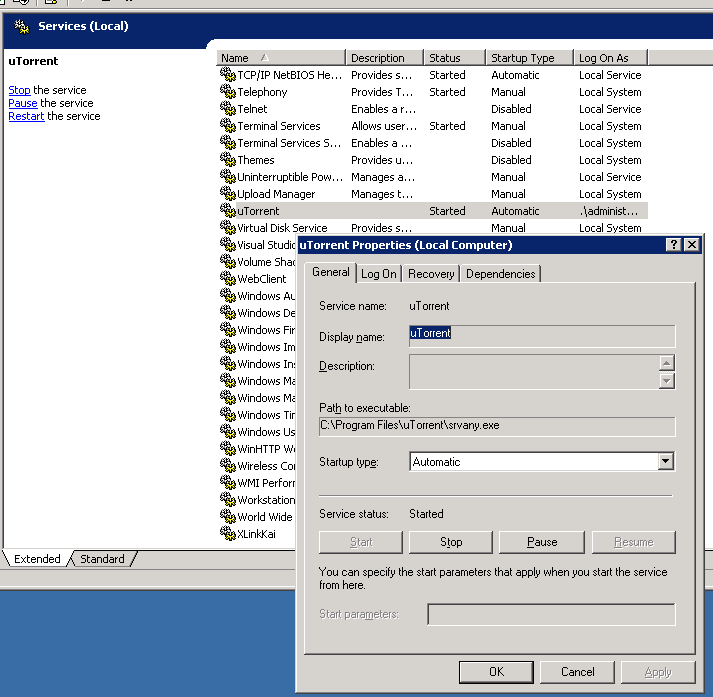
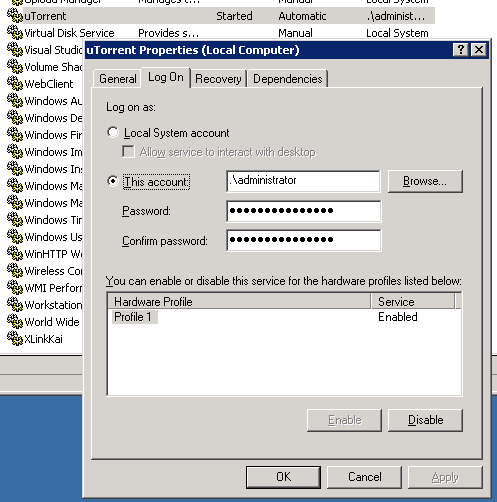
You need to configure it so that it starts automatically (screen shot 1), and make sure that the user it logs on as is the same one you configured uTorrent with in part 1.
Now start it. Use MMC and simply click start. You can do it from the Command line by typing Net Start uTorrent
The service should start, and if you fire up a browser you should be able to access uTorrent's WebUI via the URL with the UID, PWD and Port you configured uTorrent with in Part 1.
That's it, you now have a torrent server that you can use for your downloads without having to keep the box logged on with a UserID.
I was also running PeerGuardian2 from Phoenix Labs on my old desktop, to protect my privacy 
Using the same tools I configured this as a service too.
I'm not a huge online gamer, but occasionally I play Halo 2 on the Kai network. My Xbox connects to the Kai network via the XLink Kai engine on my server. Previously this ran on the desktop, but with some effort I eventually got it running as a service. You can see it at the bottom of my service list on the screen print above.
I hope these articles were useful, and if you weren't using uTorrent you are now.


Hiç yorum yok:
Yorum Gönder