http://internet-yazilim-teknoloji.blogspot.com/:

30 Ekim 2010 Cumartesi

How to Create Your Own Torrent Tracker with RivetTracker


There are some things that are less about usefulness, and more about the cool factor. One such thing is setting up your own torrent tracker. There are plenty of legitimate use cases, but for most people, a personal tracker would be overkill. If, however, you need to distribute large files without wasting bandwidth, or just want to know how all this works, you can get one started fairly easily with RivetTracker. All you need is the right software and a basic understanding of Apache to get things moving.


A Little About RivetTracker

RivetTracker is a Bittorrent tracker written in PHP. It’s based on PHPBTTracker and includes detailed statistics, user management, browser-based configuration “wizard”, and plenty more. Since it’s PHP, RivetTracker isn’t necessarily dependent on any specific platform. This is the full list of requirements as stated by the RivetTracker website:
  • A webserver, Apache is a great one.
  • A recent version of PHP.
  • The MySQL Database.
In short, it needs a LAMP server to operate (WAMP or MAMP server will also work). In this guide, we will be using Ubuntu 9.10, Apache 2.2.12, and PHP 5.2.10 as a reference.

Prerequisites

If you intend to run this tracker on a professionally hosted server, it should have all the necessary software installed.

If you intend to run this on your own server, you have to follow the article here to install a LAMP server in your system first before proceed.

During the installation of LAMP server, it will prompt you to create a root user, take note of the name and password you choose as we’ll need it later.

Note: Make sure you have installed the LAMP server successfully and verified that it is working before you proceed.

Installing RivetTracker

You can download the tarball from the RivetCode website and save it in your home directory. Extract the tarball (simply right-click on the tarball and select “Extract here“). You should now have a folder full of RivetTracker’s files, mostly in PHP form.

Rename the folder to “tracker” (without the quote)

Next, we are going to copy the tracker folder to your Apache web server. In your terminal:
sudo cp -R ~/tracker /var/www/

Setting Up RivetTracker

To begin the setup, open a web browser and point the URL to http://127.0.0.1/tracker/install.php.
We’ll be proceeding with the second option, letting RivetTracker create the needed database automatically.

rivettracker-install

In the field where it asks you for your admin username and password, enter the one that you have created earlier while setting up the LAMP server.

rivettracker-dblogin

If you’re running RivetTracker on a commercial server, you may be able to use your usual login for that host. If not, you will need to contact your web host regarding MySQL access before you can proceed.

Main Configuration

If all went well in the last step (it should have clearly indicated the problem if not), you’ll get a message indicating the database was created successfully, and you’ll see the main configuration page.

rivettracker-config

Many can be left at the defaults, but there are a few that you’ll want to make sure to check:
  • Make tracker hidden: Will force a login to view torrent list
  • Persistent MySQL connections: Probably a good idea if you’re running this on your own server
  • Upload and Admin user accounts
  • Title on index.php statistics page: This will be the main header text on the front page
  • Enable RSS feed: RivetTracker can send out feeds about new torrents
  • Main website url
  • HTTP seeding rate: In short, the amount of bandwidth to sacrifice to HTTP seeding
  • HTTP seeding count: How many files to seed at a time
  • Timezone
When ready, save the configuration. If the installer throws an error saying that it can’t save the config file, don’t panic. Just save the config.php file with the handy button, and manually copy it to the /var/www/tracker folder (you will need to have root permission).

Delete the install.php file

Now that you are done with the installation, you will need to remove the installer file to prevent someone from accessing it and use it to reconfigure your tracker.
sudo rm /var/www/tracker/install.php

Setting Permissions

To add new torrents and RSS feed, we need to change the permissions on the torrents and RSS directory:
sudo chmod 777 /var/www/tracker/torrents
sudo chmod 777 /var/www/tracker/rss
Note: Setting the permissions to 777 is a TEMPORARY solution. Securely setting permissions for writeable data on web servers is beyond the scope of this guide, and it is highly recommended that you look into that before deploying your tracker live.

You are good to go

Until this stage, if everything go smoothly, you should be able to access your tracker site now. Point your browser to your tracker’s address (http://127.0.0.1/tracker/)

rivettracker-main

Now’s a great time to test out those users you set up. The first has the capacity to upload but not delete, so let’s upload. Click Add Torrent to Tracker Database and you’ll be asked for a login. Enter the credentials of the uploading user and you’ll be knocked back to the main page where you can go back and get upload screen.

Note: Your tracker URL when creating torrents will be your tracker’s full address, ending with announce.php, such as http://127.0.0.1/tracker/announce.php

Once you’ve got the torrent file entered, the other options can normally be left at defaults. As long as you’ve got the permissions set on the torrents directory in your site’s root, and the torrent file has your tracker URL, you should be all set.

rivettracker-mainwithtorrent

If you need to remove a torrent, you can do so by logging in as the administrative user and clicking Admin on the main page. You’ll find many other useful things there as well, such as additional statistics and configuration settings.

Now, you can go brag to your friends that yeah, you run your own torrent tracker, but really it’s no big deal.

Create Your Own Torrent Download Server

Part 1
Part 2

Background

Thursday 26th Novemember saw my media server (an old desktop running XP SP2) give up on me. The harddisk that the OS was installed on was corrupt with a boot becoming impossible because some of window's key files like HAL.dll were missing/corrupt. I soon realised that the disk was finished. But it didn't matter too much because all of my media was installed on an external HD and a second internal HD in the machine.

The Problem

I like to keep up to date with some of the shows that air in the US before they are shown in the UK. I use Xbox Media Centre to play back the stuff I download, with the "media server" merely serving up the files accross my network. I have a modded Xbox (not a 360) that allows me to play my "backup" games and also allows you to use the Xbox as a media centre.


I found myself logged on to my trusty old "media server" all of the time, downloading these shows using the Bittorrent protocol. I've always wanted to have a client that would run as a windows service that I could administer remotely and would not require me to have a User ID logged onto the opperating system 24x7.

It seemed like the perfect time to try and find the solution to this little problem as I rebuilt my machine.

The Solution

I decided to install a copy of Windows 2003 on my media server, using the same approach as before with the OS on a separate disk. Over the last 4 years I have used most of the torrent clients, the best one being uTorrent. It doesn't have an installation package, require Java, or screw up my router.

As luck would have it when I went to http://www.utorrent.com/ , to get the latest client, they had announced the release of uTorrent WebUI on public beta. This was great news, the remote administration angle looked like it was sorted.

What next? Okay, so if I could just get uTorrent running as a Windows Service on my machine that would do!! With a bit more digging, and downloading The Windows 2003 Resource Kit I found the solution. Using two of the tools that I had downloaded you can configure pretty much anything to run as a Windows Service. See Part 2 of this article to find out how.

You don't need Windows 2003 Server you can do this on XP, so keep reading

I'll walk you through configuring this, starting with uTorrent WebUI.

Install uTorrent WebUI

This is pretty easy, it doesn't have a complicated install process and configuring the WebUI is straight forward. Download the app. You can find it here http://download.utorrent.com/beta/webui_v0.310_beta_2.rar

Once you've downloaded this rar file, get it unpacked on your desktop. You'll find a number of files in the archive. Create a folder for uTorrent, possibly C:\Program Files\uTorrent and copy the utorrent exe into that directory. You could rename it as well. Setup shortcuts etc and run the app. If its the first time you have run uTorrent it will ask you a few questions. Basically associate uTorrent to .torrent files, make it the default client, and don't choose to start it when you logon to windows.

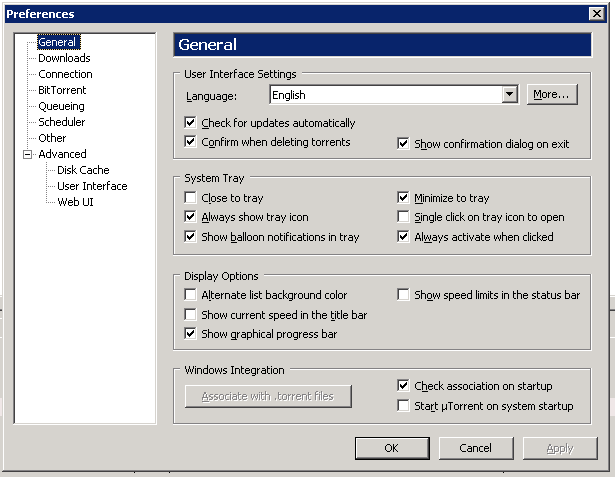
These can be altered in the preferences menu, navigate there now and make sure that Start uTorrent on system startup is unchecked in the general section. The preferences are stored per user so make sure that you are logged on as the user you intend to run uTorrent under when it is installed as a Windows Service. See part 2 of this article on how to do it.

Now Click Start -> Run and enter C:\Documents and Settings\User Name\Application Data\uTorrent at the prompt

This opens uTorrent's appdata directory for the user who's logged on and the service that will run the app. From the downloaded rar file, copy the file webui.zip into this folder. Don't unzip it.
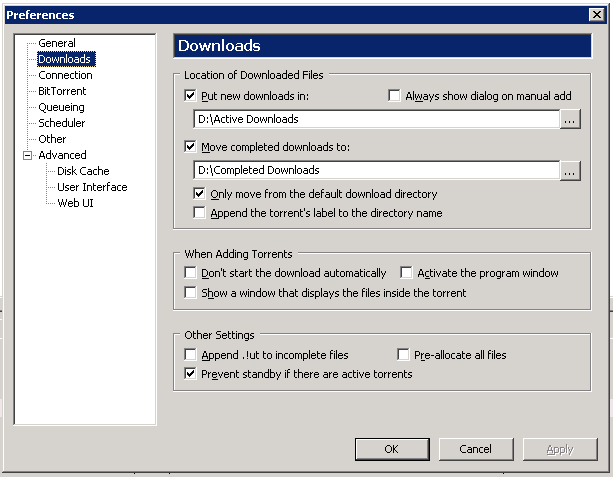
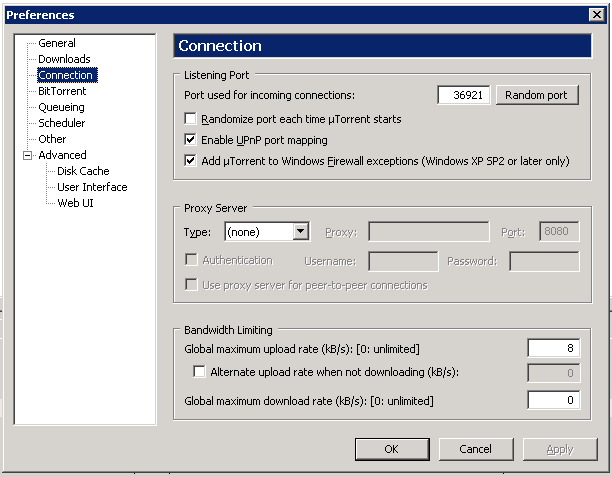
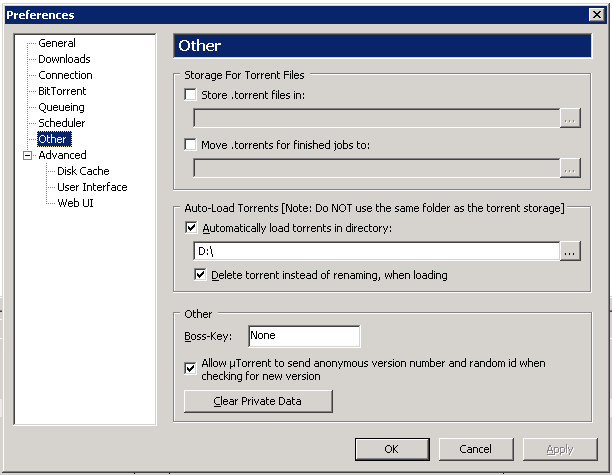
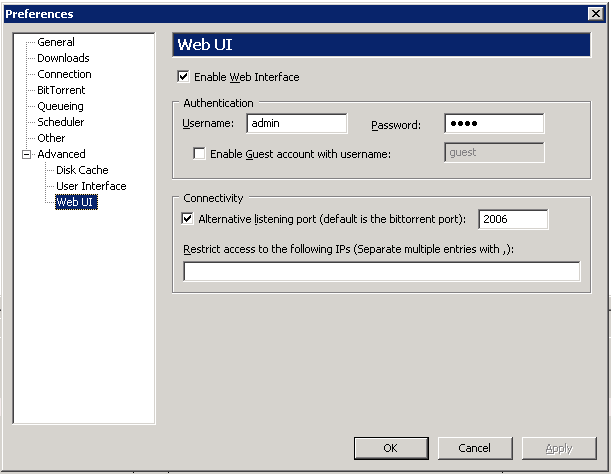
Okay, rather than type I've screen shot all the preferences screens from my install.

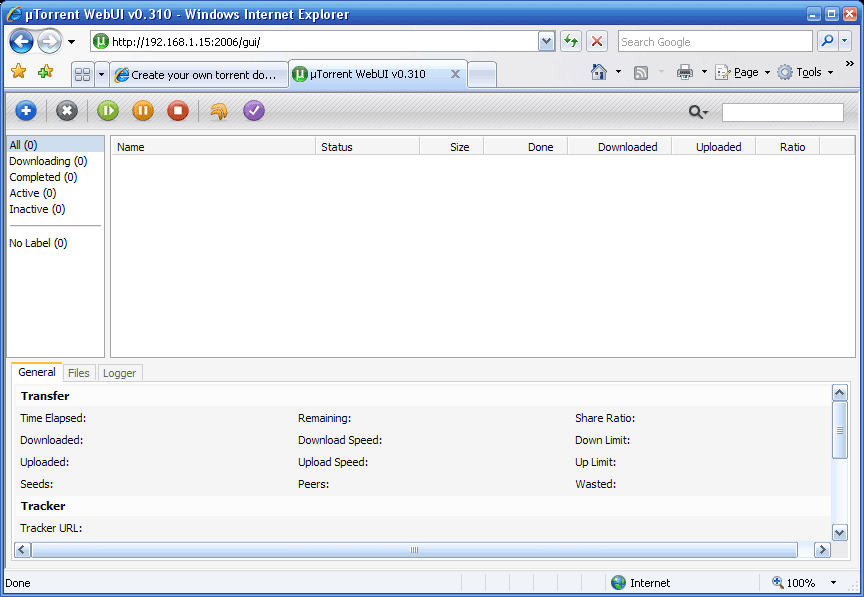
Once you've configured it, close the preferences dialog box and fire up your web browser. You don't need to do anything with IIS. uTorrent listens on the port you specify in WebUI section for HTTP requests and serves up the web front end to you browser.


You should now see uTorrent in your browser.


Okay, if you've got uTorrent running and accessible via a browser (locally and remotely) we're ready to install it as a Windows Service.

Install uTorrent as a Windows Service

We need a couple of tools to do this, I downloaded them with the Windows 2003 Resource Kit. The two files are

instsrv.exe and srvany.exe

and available to download on this page.

Copy these files into the program directory you have created for uTorrent. Get a command prompt by Start -> Run and entering CMD at the prompt.

At the command line get into the uTorrent directory using the cd command. Then run the following command. Where uTorrent is the name of your uTorrent folder in Program Files. If you've installed this elsewhere amend the path accordingly.

instsrv uTorrent "C:\Program Files\uTorrent\srvany.exe"

This creates the appropriate Registry Entries to manage the service. Srvany.exe acts as a wrapper to the uTorrent.exe and allows it to be managed as a Windows Service.

Okay, now we need to make a tweak to the registry, to basically map the path of the uTorrent.exe that Srvany.exe has to manage. Do this by creating a .Reg file using notepad

Paste in the code below.

Windows Registry Editor Version 5.00
HKEY_LOCAL_MACHINE\SYSTEM\CurrentControlSet\Services\uTorrent\Parameters]
["Application"="C:\\Program Files\\utorrent\\utorrent.exe"
You can navigate to the registry and make the same change. You've now done enough to get an entry in the Windows Services Database and you can now access it via the Services section of Microsoft Management Console.

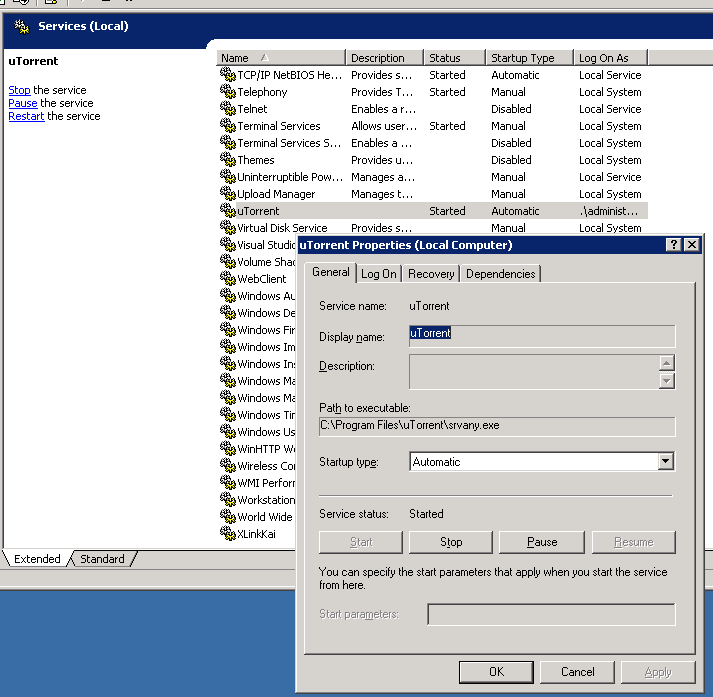
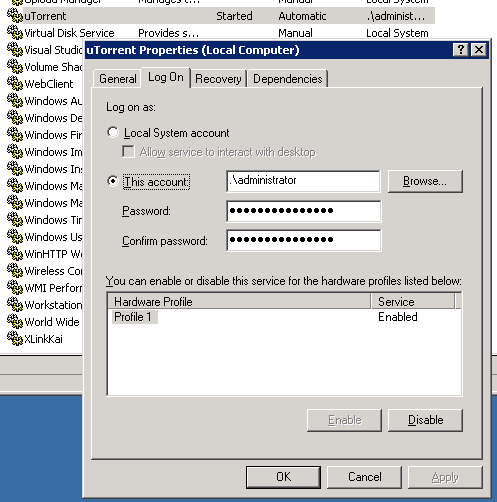
Once in Services you can configure the User Account that uTorrent runs under when it runs as a service. See below. My service is already running in these shots.


You need to configure it so that it starts automatically (screen shot 1), and make sure that the user it logs on as is the same one you configured uTorrent with in part 1.

Now start it. Use MMC and simply click start. You can do it from the Command line by typing Net Start uTorrent

The service should start, and if you fire up a browser you should be able to access uTorrent's WebUI via the URL with the UID, PWD and Port you configured uTorrent with in Part 1.

That's it, you now have a torrent server that you can use for your downloads without having to keep the box logged on with a UserID.

I was also running PeerGuardian2 from Phoenix Labs on my old desktop, to protect my privacy
Using the same tools I configured this as a service too.

I'm not a huge online gamer, but occasionally I play Halo 2 on the Kai network. My Xbox connects to the Kai network via the XLink Kai engine on my server. Previously this ran on the desktop, but with some effort I eventually got it running as a service. You can see it at the bottom of my service list on the screen print above.

I hope these articles were useful, and if you weren't using uTorrent you are now.

29 Ekim 2010 Cuma

hotfile.com

http://hotfile.com

Uzak Yükleme


101domain.com/domain_whois_server.php

http://www.101domain.com/domain_whois_server.php

SiteMap Generator

http://hotfile.com/dl/79102277/f3c3ade/SiteMap_Generator.rar.html


Başarılı bir sitemap alma programını. Sitemap işlemini program kendiliğinden bitirince "Google Sitemap / XML " kısmında site haritasını görebilir ve kaydedersiniz. Kaydettikten sonra eğer xml dosyasını açıyor ama hata alıyorsanız kaydettiğiniz xml dosyasını frontpage gibi bir editör programıyla açıp code kısmında xml'yi biçimlendir demeniz yeterlidir. 

xml-sitemaps.com

http://www.xml-sitemaps.com

seobook.com/archives/001714.shtml

http://www.seobook.com/archives/001714.shtml

raventools.com

http://raventools.com

http://raventools.com/support/training-webinars

siberkultur.com

http://siberkultur.com


code.google.com/apis/opensocial

http://code.google.com/apis/opensocial

siberkultur.com/?q=search/node/seo

http://siberkultur.com/?q=search/node/seo

google.com/friendconnect

http://www.google.com/friendconnect

43 Web Tasarım Hatası

http://www.webtasarimi.tv/?p=1905
  1. Ziyaretçi sitenizin içeriğini saniyeler içerisinde anlayabilmeli.
  2. Uzun yazılardan kaçının .İçeriğiniz başlık,alt başlık ve listelerden oluşsun.İçerik ,okuyucu tarafından kolayca taranabilmeli ve istediğini rahatlıkla bulması sağlayın.
  3. Okunaksız ve süslü bir yazı tipi kullanmayın.
  4. Ufak yazı tiplerini kullanmayın.İçeriğiniz kolayca okunabilmelidir.
  5. Sitenizden verilen linkleri yeni bir pencerede açmayın.Kontrolün kullanıcıda olmasını sağlayın.
  6. Kullanıcının tarayıcı pencerisini yeniden boyutlandırmayın.Kontrolün kullanıcıda olmasını sağlayın.
  7. Gerekli olmadıkça ziyaretçileri üye olmaları için zorlamayın.
  8. Sitenize üye olan bir kullanıcıya otomatik olarak haber bildirimlerini göndermeyin.
  9. Websitenizin yüklenişini geciktirmesi haricinde, Flash’ın aşırı kullanımı ziyaretçileri kızdırabilir.
  10. Müzik kullanmayın.
  11. Eğer bir audio dosya kullanmak zorundaysanız bunu ziyaretçinin başlatmasını sağlayın.
  12. Sitenizi rozetlerle doldurmayın. Ağ(Network) ve Komünite rozetleri siteleri profosyonel olmayan bir görünüme sokarlar. Tanımlama ve ödül rozetlerini ise hakkımızda sayfasına yerleştirin.
  13. Anasayfayı esas site arayüzünü başlatan sayfa olarak kullanmayın. İçeriğinize birkaç adımda ulaşılmasını sağlayın.
  14. İletişim bilgilerini eklediğinizi emin olun.Aksi takdirde geribeslemeyi zaten kaybetmiş olursunuz.
  15. Kullanabilirliğin temel bir ilkesi olan ‘’Geri’’ butonunu unutmayın.
  16. Parıldayan link kullanmayın(bazı forumlarda mevcut).
  17. Karışık URL yapılarından kaçının.
  18. HTML tablolarında CSS kullanın.
  19. Kullanıcılarınızın sitenizin tamamını araştırabildiğinden emin olun.
  20. Açılır menülerden sakının.
  21. Tekst yönlendirmeyi kullanın.
  22. PDF dosyalarının linklerini açık olarak belirtin. Çünkü Acrobat Reader başlayana kadar belirli bir süre geçecek ve bu da ziyaretçiyi rahatsız edecektir.
  23. Sitenizde bağlantı hızı, flash veya html seçenekleri sunarak ziyaretçinin kafasını karıştırmayın.
  24. Adsense reklamlarını içeriğinize gömmek kısa vadede tıklanma oranınızı arttırabilir. Uzun vadede bu okuyucu kitlenizin azalmasına neden olacaktır. Kızmış bir ziyaretçi kaybedilmiş bir ziyaretçidir.
  25. Basit bir navigasyon(yönlendirme,dolaşma) yapısına sahip olun. Ziyaretçiler istediklerine kolayca ulaşabilsin.
  26. Giriş animasyonlarından sakının.
  27. Frontpage kullanmayın. Bu tip HTML editörleri site oluşturmayı kolay hale getirirler fakat kod yönünden zayıf,diğer tarayıcılarla uyumsuz ve çeşitli hatalarla dolu sitelerin ortaya çıkmasına neden olurlar.
  28. Sitenizin çapraz tarayıcı desteği(cross-browser) ile uyumlu olduğundan emin olun.
  29. Linklere Çapa(Anchor) tekst dahil ettiğnizden emin olun.
  30. Linklerinizi gizlemeyin(cloaking link). Ayrıca, kullanıcı tarayıcı durum çubuğunda linkin nereye gittiğini görebilmesini sağlayın.
  31. Linkleri farkedilebilir yapın. Ziyaretçi hangisinin tıklanabilir hangisinin tıklanamaz olduğunu kolayca anlayabilmelidir. Linkleriniz yazıdan farklı bir renkte olduğuna emin olun. Linklerinizi altı çizili olarak da sunabilirsiniz.
  32. Gerekli olmadıkça normal yazıyı altı çizili veya arka planı renkli olacak şekilde yayınlamayın.
  33. Tıklanan linklerin renginin değişmesine dikkat edin.Bu sitenin kulllanılabilirliği açısından önemlidir.
  34. Animated gif kullanmayın çünkü izleyicinin dikkatini dağıtırlar ve profosyonel olmayan bir görünüm sunarlar.
  35. Resimler için ALT ve TITLE özniteliklerini(attribute) kullandığınızdan emin olun.
  36. Uyumsuz ve göze batan renkler kullanmayın.
  37. Beliren(pop-up) pencere veya mesaj kullanmayın.
  38. Javascript linklerinden sakının. Bu linkler kullanıcı tıkladığında ufak bir js uygulamaya koyarlar. Kullanıcılar için sorun teşkil ettiklerinden dolayı kullanmayın.
  39. Sayfa altlığına(footer) fonksiyonel linkler dahil edin. Buradan Anasayfaya ve İleitişim bölümüne link verebilirsiniz.
  40. Uzun sayflardan dolayısıyla uzun yazılardan kaçının.Bunu yapmazsanız okuyucu yazınızın büyük kısmını atlayacaktır.
  41. Yatay kaydırma(scrolling) kullanmayın. Dikey kaydırma kabul edilebilr ama yatay kaydırma hakkında aynı şey söylenemez.
  42. Heceleme ve grammer hatası yapmamaya özen gösterin. Bu bir dizayn hatası değildir fakat toplamda bir sitenin kalitesini etkileyen önemli faktörlerden birtanesidir.
  43. Captcha (Completely Automated Public Turing test to tell Computers and Humans Apart) kullanıyorsanız rakamların ve harflerin okunabilir olmasına dikkat edin

27 Ekim 2010 Çarşamba

Most ideal size for your Web Site?

http://www.kevinboss.com/blog/most-ideal-size-for-your-web-site 

It’s one of the oldest questions in the book: what browser size should I design my website for? Do I cater to people running lower resolutions such as 800×600, do I think my visitors want a wider layout like 1024×768, or do I think my visitors surf on a movie screen? Well, they probably aren’t going to be surfing on a movie screen, and chances are that they’re running something higher than 800×600. How about I stop with these generalizations and give you some useful info? How about a pretty chart?

Browser Display Statistics
According to w3schools, less than 8% of the web is using an 800×600 resolution. You can debate those numbers and say that the information gathered by w3schools is biased toward those more inclined towards technology (read: nerds), and you’d be absolutely right. Whether or not you trust the numbers given by w3schools, you’re going to be hard-pressed to find statistics indicating 800×600 accounts for anything close to significant.

If 800×600 is insignificant, why even question what size to build by? Because even though it’s not a large percentage, it’s still a percentage. Let’s say you run an ecommerce site, and you get 1,000 hits a day. That small percentage is now 50 people per day, 50 people who may or may not buy something from you. Hopefully you’ll see the value in 50 potential customers per day, and try to accommodate them.

Unless you are either psychic or have a really impressive statistic program, you’re not going to get accurate numbers on what size your users are browsing with. Even resolution statistics aren’t an accurate metric because it would have to be assumed that all users are running a full screen browser, which simply is not true.

Then what do you do? One of three things. 

Create a resolution-independent site that uses percentages rather than absolute values. 

This method can be quite challenging depending on your site’s content and needs. If users have very wide screens, your site can be stretched to the point of comedy. I’ve seen very well done liquid websites, but it’s not the best solution for every site. 

Err on the side of caution

Create that site with the 800×600 people in mind. Sure they only make up a small percentage, but at least you know you have your bases covered. Even though most of your visitors have a higher resolution, who’s to say what percentage of them are browsing in a full size window? My resolution is set to 1280×1024, but my browser window is usually 900 pixels wide. It’s how I roll ok? The downside here is that users with wider screens may be annoyed that they see so much wasted space. 

Use the size that best compliments your content

Quite an idea huh? Use your site’s content to choose the size that best displays it. Instead of cramming everything into a vertical column, spread that sucker out if it helps display your content better. Your site may not be accessible to those with lower resolutions.

This is certainly not a complete (or well-written) list, but I personally think they are the most realistic and reasonable options. If you were devoted enough, sure you could create style sheets for multiple browsers, but frankly I’d rather work on adding and improving to my content than struggling with the size of my site.

In closing, there is no ideal size. There are different options you can choose, with each option having negatives and positives. Want to read more on the subject? Here ya go. Just remember who had the pretty pie chart.

AppCleaner 1.2

http://hotfile.com/dl/78645572/d2ad692/AppCleaner_1.2.zip.html

24 Ekim 2010 Pazar

pingtest.net


Packet Loss

Much as it sounds, if you have anything less than complete success in transmitting and receiving "packets" of data then you are experiencing this problem with your Internet connection. It can mean much slower download and upload speeds, poor quality VoIP audio, pauses with streaming media and what seems like time warping in games -- your connection may even come to a total standstill! Packet loss is a metric where anything greater than 0% should cause concern.

Ping

This measurement tells how long it takes a "packet" of data to travel from your computer to a server on the Internet and back. Whenever you experience delayed responses in Internet applications - this would be due to a higher than desired ping. Similar to packet loss, lower is better when it comes to ping. A result below 100 ms should be expected from any decent broadband connection.

Jitter

Once you understand ping, jitter should also make sense. Jitter is merely the variance in measuring successive ping tests. Zero jitter means the results were exactly the same every time, and anything above zero is the amount by which they varied. Like the other quality measurements, a lower jitter value is better. And while some jitter should be expected over the Internet, having it be a small fraction of the ping result is ideal.

speedtest.net

http://speedtest.net

22 Ekim 2010 Cuma

freedback.com

http://www.freedback.com

formsite.com

http://www.formsite.com

wallpaperweb.org

http://www.wallpaperweb.org

Profesyonel Fotoğrafcılık (Türkçe)

http://hotfile.com/dl/77595806/4e2c495/Profesyonel_Fotografcilik.zip.html

Resmi Adobe CS4 Yardım Kitapları (Türkçe)

http://hotfile.com/dl/77595165/4fad8d7/Resmi_Adobe_CS4_Yardim_Kitaplari.zip.html


Adobe Photoshop - Every Tool Explained (İngilizce)

http://hotfile.com/dl/77593735/7d2e9af/Adobe_Photoshop-Every_Tool_Explained.zip.html

Adobe Photoshop Egitim (Türkçe)

http://hotfile.com/dl/77593296/9bba2eb/Adobe_Photoshop_Egitim.zip.html

Adobe CS5 eBooks (İngilizce)

http://hotfile.com/dl/71186749/c63091c/Adobe_CS5_eBooks.zip.html


Adobe CS5 Classroom in a Book
Adobe Flash Catalyst CS5 Classroom in a Book.pdf
Adobe Flash Professional CS5 Classroom in a Book.pdf
Adobe Illustrator CS5 Classroom in a Book.pdf
Adobe InDesign CS5 Classroom in a Book.pdf
Adobe Photoshop CS5 Classroom in a Book.pdf

Adobe Photoshop CS5 The Missing Manual.pdf
Adobe Creative Suite 5 Design Premium All-in-One For Dummies.pdf
Adobe Dreamweaver CS5.pdf
Adobe Photoshop CS5 One-on-One.pdf
Adobe Photoshop CS5 Trickery & FX.pdf


Adobe PhotoShop CS4'ü Kullanma (Türkçe)

http://hotfile.com/dl/77590817/ac97e59/Adobe_PhotoShop_CS4u_Kullanma.zip.html

Adobe Acrobat 9 Pro Kullanici El Kitabı (Türkçe)

http://hotfile.com/dl/77589012/1e0d5d5/Adobe_Acrobat_9_Pro_Kullanici_El_Kitabi.zip.html


Windows XP Kurulumu

http://hotfile.com/dl/77586098/1d6de8a/Windows_XP_Kurulumu.mp4.html